Discuss Scratch

- Discussion Forums
- » Show and Tell
- » Zoomable Mandelbrot and Burning Ship fractal generators +Tutorial!
![[RSS Feed]](//cdn.scratch.mit.edu/scratchr2/static/__d235e7f35585482ca999583499337ccd__//djangobb_forum/img/feed-icon-small.png "[RSS Feed]")
![[RSS Feed]](http://cdn.scratch.mit.edu/scratchr2/static/__d235e7f35585482ca999583499337ccd__//djangobb_forum/img/feed-icon-small.png "[RSS Feed]")
- MrFlightless
-
 Scratcher

7 posts
Zoomable Mandelbrot and Burning Ship fractal generators +Tutorial!
This topic is both an advertisement and a tutorial for my fractal generators.
First of all I guess you need links to my projects, so here they are:
Mandelbrot fractal: https://scratch.mit.edu/projects/125766114/
Burning ship fractal: https://scratch.mit.edu/projects/125765432/
Next is an Illustrated tutorial on how to use them.
Since both programs have the same controls, I will only be using the Mandelbrot version, but all the steps should be identical for the burning ship version.
I. Generating a fractal
1. Before you start the program, I recommend turning turbo mode on by holding the SHIFT key and clicking the green flag at the same time.
2. After you start the program, it will ask you what the maximum number of iterations should be, if you are not going to explore much then I recommend setting it to somewhere around 25, but if you plan on zooming in very far, then I would recommend setting it to somewhere in the hundreds or higher if you want much detail when you zoom in.
If you decide you want to change this later then you can push the N key and enter a new number.
Here are some pictures showing the difference the number of max iterations makes:
Example of 25 max iterations:
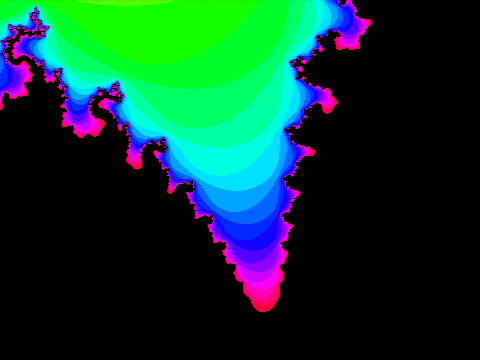
Same place but at 100 max iterations:
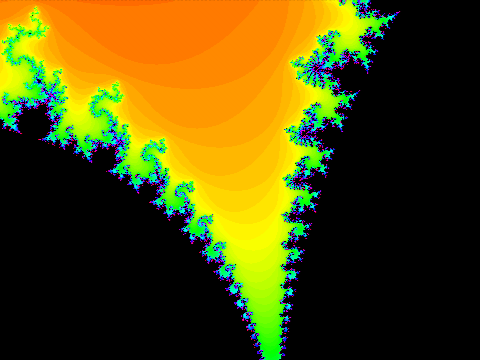
3. Next it will ask you what to set the zoom to, and for this I recommend 90-120 to start with unless you are copying somebody else's settings or you want to start zoomed in really far at a probably boring spot.
You can change this later by pressing I, O or Z (more details later on).
4. Now, after entering the last number, it should ask you what the X (or real) coordinate (of the fractal, not the stage) in the middle should be, I recommend 0 for this unless, again, you are copying settings.
5. Next it will ask you the Y (or imaginary) coordinate should be and again I recommend 0, just like X.
6. Now it will ask you for a “Starting Color” something you should know is that it is asking for a pen color NUMBER from 0-200, NOT the NAME of a color! All this changes is the color everything looks so I don't have any recommendations but I can include a list of some common colors:
0 is Red
16 is Orange
33 is Yellow
66 is Green
100 is Light Blue
133 is Blue
166 is Purple
You can also change this later by pressing the C key.
Example of a starting color of 66:

Example of a starting color of 150:
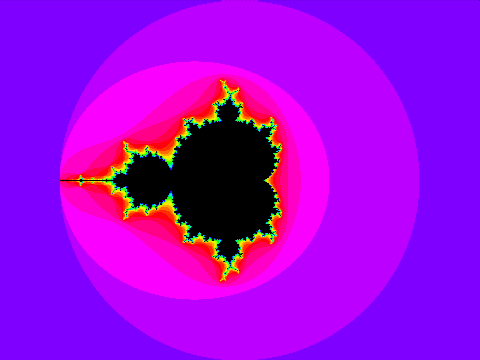
7. After all of that is entered, then you can sit back (or do something else) and wait for it to generate.
It might take a long time for it to generate depending on how many max iterations you chose, how far you are zoomed in, etc.
II. Zooming in after generation
1. Simple zoom
With this method all you have to do is press the I key or the O key to zoom in 4x or out 4x respectively, but you CANNOT change where it is centered using this method.
2. Mouse Zoom
To start using this method you have to press the Z key and then you should see a black and yellow striped box around the cursor kind of like in
this picture:
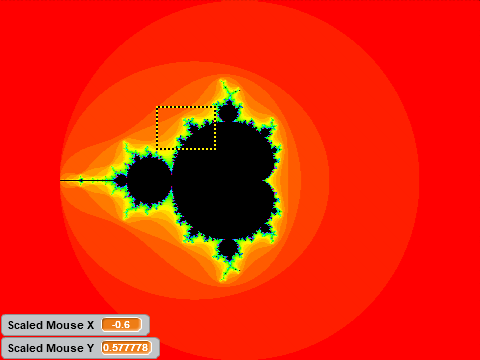
Now that box is kind of like the magnifying glass tool in Windows Paint and you can move it around with the mouse, but you can also change the size of it with the I and O keys if you want to make it smaller or bigger.
After you have the box where you want it and the size you want it then you can click the left Mouse button (you might have to hold it) to expand everything in the box up to the size of the stage (or zoom in) like in this picture:
The previous image after clicking:
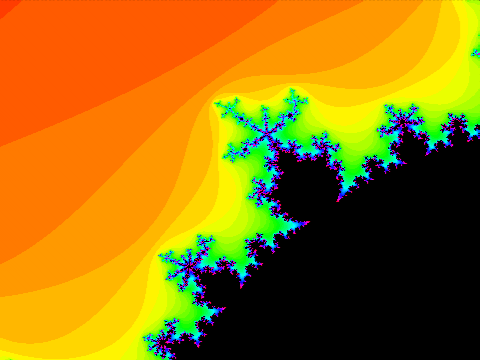
If you decide that you don't want to zoom in then you can just press Z again to hide the selection box.
Unfortunately after you zoom in or out with either method, you will have to wait for it to generate again with the new settings .
.
One way you can speed it up is by reducing the number of max iterations but that also reduces the quality especially if you are zoomed in far.
III. Full list of keyboard shortcuts
O Zooms out 4x (then redraws) or makes the mouse zoom selection box bigger
I Zooms in 4x (then redraws) or makes the mouse zoom selection box smaller
Z Shows or hides the mouse zoom selection box and scaled mouse coordinate variable monitors
N Lets you change the maximum number of iterations after you have already started the program (redraws)
M Lets you change the middle coordinates after starting the program (redraws)
C Lets you change the starting color after you started the program (does not redraw but you might have an ugly transition though)
R Asks you if you want to redraw (regenerate) everything (useful after changing the color), enter “y” to confirm or “n” to deny
S Shows or hides a bunch of variables which show your current settings and a few other things
Example of having the variables shown after pressing S:
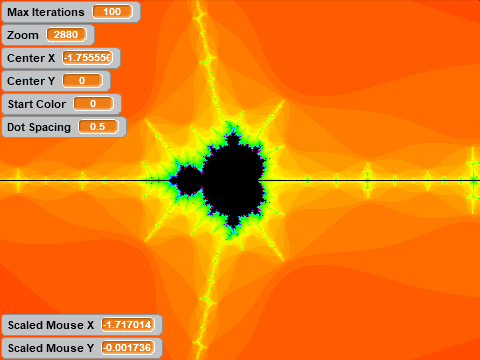
IV. Conclusion
And that is all I can think of right now, I hope you liked it and I did a good job of explaining how to use my programs,
but if you have any ideas, comments or constructive criticism, then go ahead and mention them down below or on one of the two projects.
Once again the links are:
Mandelbrot fractal generator: https://scratch.mit.edu/projects/125766114/
Burning ship fractal generator: https://scratch.mit.edu/projects/125765432/
That is it for now finally because this took forever to write so GOODBYE!!!
First of all I guess you need links to my projects, so here they are:
Mandelbrot fractal: https://scratch.mit.edu/projects/125766114/
Burning ship fractal: https://scratch.mit.edu/projects/125765432/
Next is an Illustrated tutorial on how to use them.
Since both programs have the same controls, I will only be using the Mandelbrot version, but all the steps should be identical for the burning ship version.
I. Generating a fractal
1. Before you start the program, I recommend turning turbo mode on by holding the SHIFT key and clicking the green flag at the same time.
2. After you start the program, it will ask you what the maximum number of iterations should be, if you are not going to explore much then I recommend setting it to somewhere around 25, but if you plan on zooming in very far, then I would recommend setting it to somewhere in the hundreds or higher if you want much detail when you zoom in.
If you decide you want to change this later then you can push the N key and enter a new number.
Here are some pictures showing the difference the number of max iterations makes:
Example of 25 max iterations:
Same place but at 100 max iterations:
3. Next it will ask you what to set the zoom to, and for this I recommend 90-120 to start with unless you are copying somebody else's settings or you want to start zoomed in really far at a probably boring spot.
You can change this later by pressing I, O or Z (more details later on).
4. Now, after entering the last number, it should ask you what the X (or real) coordinate (of the fractal, not the stage) in the middle should be, I recommend 0 for this unless, again, you are copying settings.
5. Next it will ask you the Y (or imaginary) coordinate should be and again I recommend 0, just like X.
6. Now it will ask you for a “Starting Color” something you should know is that it is asking for a pen color NUMBER from 0-200, NOT the NAME of a color! All this changes is the color everything looks so I don't have any recommendations but I can include a list of some common colors:
0 is Red
16 is Orange
33 is Yellow
66 is Green
100 is Light Blue
133 is Blue
166 is Purple
You can also change this later by pressing the C key.
Example of a starting color of 66:
Example of a starting color of 150:
7. After all of that is entered, then you can sit back (or do something else) and wait for it to generate.
It might take a long time for it to generate depending on how many max iterations you chose, how far you are zoomed in, etc.
II. Zooming in after generation
1. Simple zoom
With this method all you have to do is press the I key or the O key to zoom in 4x or out 4x respectively, but you CANNOT change where it is centered using this method.
2. Mouse Zoom
To start using this method you have to press the Z key and then you should see a black and yellow striped box around the cursor kind of like in
this picture:
Now that box is kind of like the magnifying glass tool in Windows Paint and you can move it around with the mouse, but you can also change the size of it with the I and O keys if you want to make it smaller or bigger.
After you have the box where you want it and the size you want it then you can click the left Mouse button (you might have to hold it) to expand everything in the box up to the size of the stage (or zoom in) like in this picture:
The previous image after clicking:
If you decide that you don't want to zoom in then you can just press Z again to hide the selection box.
Unfortunately after you zoom in or out with either method, you will have to wait for it to generate again with the new settings
 .
.One way you can speed it up is by reducing the number of max iterations but that also reduces the quality especially if you are zoomed in far.
III. Full list of keyboard shortcuts
O Zooms out 4x (then redraws) or makes the mouse zoom selection box bigger
I Zooms in 4x (then redraws) or makes the mouse zoom selection box smaller
Z Shows or hides the mouse zoom selection box and scaled mouse coordinate variable monitors
N Lets you change the maximum number of iterations after you have already started the program (redraws)
M Lets you change the middle coordinates after starting the program (redraws)
C Lets you change the starting color after you started the program (does not redraw but you might have an ugly transition though)
R Asks you if you want to redraw (regenerate) everything (useful after changing the color), enter “y” to confirm or “n” to deny
S Shows or hides a bunch of variables which show your current settings and a few other things
Example of having the variables shown after pressing S:
IV. Conclusion
And that is all I can think of right now, I hope you liked it and I did a good job of explaining how to use my programs,
but if you have any ideas, comments or constructive criticism, then go ahead and mention them down below or on one of the two projects.
Once again the links are:
Mandelbrot fractal generator: https://scratch.mit.edu/projects/125766114/
Burning ship fractal generator: https://scratch.mit.edu/projects/125765432/
That is it for now finally because this took forever to write so GOODBYE!!!
- MrFlightless
-
Scratcher
7 posts
Zoomable Mandelbrot and Burning Ship fractal generators +Tutorial!
bump
- Kencace2758
-
 Scratcher

1 post
Zoomable Mandelbrot and Burning Ship fractal generators +Tutorial!
next costume
among us
Last edited by Kencace2758 (March 31, 2023 02:44:29)
- Ying_Dinh_Gaming
-
 Scratcher

1 post
Zoomable Mandelbrot and Burning Ship fractal generators +Tutorial!
(list :amongus: list)
- Discussion Forums
- » Show and Tell
-
» Zoomable Mandelbrot and Burning Ship fractal generators +Tutorial!