Discuss Scratch

- Discussion Forums
- » Show and Tell
- » Tetracal Modding Guide [WIP]
![[RSS Feed]](//cdn.scratch.mit.edu/scratchr2/static/__d235e7f35585482ca999583499337ccd__//djangobb_forum/img/feed-icon-small.png "[RSS Feed]")
![[RSS Feed]](http://cdn.scratch.mit.edu/scratchr2/static/__d235e7f35585482ca999583499337ccd__//djangobb_forum/img/feed-icon-small.png "[RSS Feed]")
- --HyperZ--
-
 Scratcher

100+ posts
Tetracal Modding Guide [WIP]
NOTE: This guide is a WIP.
In Tetracal, there are three primary sprites that drive the game: Main, Playfield, and Menu. Main is essentially a utility sprite, handling functionalities like broadcasting Begin Play messages, playing music, resetting the pen, etc. Without Main, the game would not start. Menu is in charge of creating the different game menus. (Who would have guessed?) Finally, Playfield is the backbone on which everything else in the game stands on. It's in charge of creating, moving, rotating, and rendering the blocks, keeping track of score, and keeping track of win conditions. Everything that makes this game a Tetris game is inside the Playfield sprite.
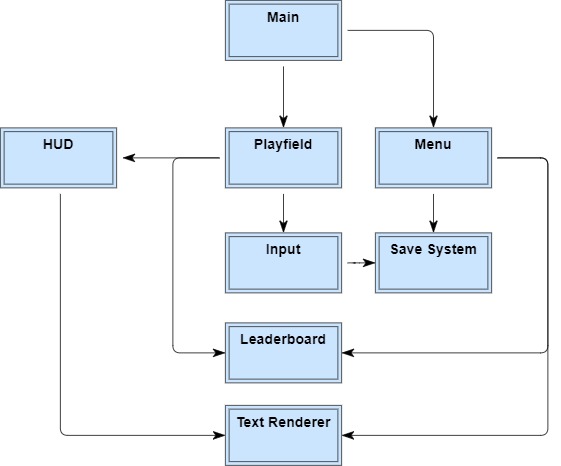
In addition to the main sprites, there are also secondary sprites that are in charge of handling a specific functionality of the game. For example, all of the input is handled in a separate sprite. (You'll find out why later.) This makes it easier to keep track of the different systems of the game. Below is a chart that illustrates the relationships between the sprites.
Now I'll give you a slightly more detailed rundown of the playfield sprite. The playfield is in charge of the Tetris portion of the game. Everything from creating and rendering blocks, moving and rotating the pieces, handling piece randomization, and giving score are handled here. Theoretically, this sprite could exist by itself as the only sprite in a game and still work as intended.
The playfield is also in charge of the primary game loop. The chart below demonstrates what it does. This, of course, is a simplified summary of what happens, but it should give you the general idea. Player input is handled independently from this loop.
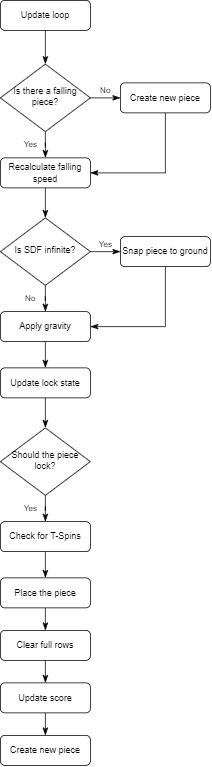
Usually, you won't need to modify the game loop, since altering it basically changes the core aspects of the entire game. But if you really want to, this is where you start. This game loop, by itself, doesn't allow the player to do anything. The reason input is separated from the main loop is because the game has a bult-in replay system. Input recording on Scratch is very finicky, so managing it in its own sprite is easier than putting everything in Playfield. Again, you usually won't want to modify the input system or replay system, unless you're adding or removing inputs from the game.
The UI system in Tetracal is very modular. It consists of two main sprites: Menu and Text Renderer. There are, of course, other UI elements, such as HUD and Countdown, but they're not interactable, and only do one or two things. Most of the game's UI is handled by the menu sprite. The menu system in Tetracal is extremely modular. Adding new menus is very easy and relatively quick. Here's how it works: The Menu sprite has a list of all the different menus, and inside the menus are items such as buttons and text. Here's a graph illustrating the relationships between everything:
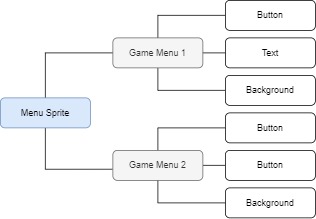
By default, there are 12 menus, stored in a list called “Menus.” When the game wants a menu to be created, there are two things that happen. First, all of the menu items related to a specific menu are created. Then, the non-text items all set their positions and costumes according to what they are. Text is handled in its own sprite, since multiple things in the game need to render text, not just the menus. Adding new menus to the game is super easy since the Menu sprite does most of the heavy lifting.
3. How to add custom skins to the game
Creating a custom skin for Tetracal will be a bit of work. Are you ready to put your art skills to use?
Before starting, you'll need to know that all of the blocks in Tetracal use 18x18 images, whether bitmap or vector. You'll need to create 7 of these 18x18 squares, each a different block color. You'll also need to create a skin image combining all of the blocks together. You can use this image as a template (Rick click → Save as…):

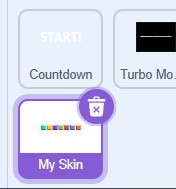
When designing your skin, keep it in its own sprite. The reason for that is that it'll be needed in multiple places.
To be finished…
4. How to add custom music to the game
5. How to add a new game mode
6. How to change the kick table
7. How to change the randomization system
Tetracal Modding Guide
Welcome! Are you remixing Tetracal? If so, this guide is for you. Tetracal is a massive game with many advanced features and systems. Because of that, I've written this guide to assist you in modifying the game. I hope you find it helpful! If you'd like a guide on how to do something specific, let me know.
Table of contents:
- How the game works
- How the UI works
How-to Guides- How to add custom skins to the game
- How to add custom music to the game
- How to add a new game mode
Advanced How-to Guides- How to change the kick table
- How to change the randomization system
1. How The Game Works
In Tetracal, there are three primary sprites that drive the game: Main, Playfield, and Menu. Main is essentially a utility sprite, handling functionalities like broadcasting Begin Play messages, playing music, resetting the pen, etc. Without Main, the game would not start. Menu is in charge of creating the different game menus. (Who would have guessed?) Finally, Playfield is the backbone on which everything else in the game stands on. It's in charge of creating, moving, rotating, and rendering the blocks, keeping track of score, and keeping track of win conditions. Everything that makes this game a Tetris game is inside the Playfield sprite.
In addition to the main sprites, there are also secondary sprites that are in charge of handling a specific functionality of the game. For example, all of the input is handled in a separate sprite. (You'll find out why later.) This makes it easier to keep track of the different systems of the game. Below is a chart that illustrates the relationships between the sprites.
Now I'll give you a slightly more detailed rundown of the playfield sprite. The playfield is in charge of the Tetris portion of the game. Everything from creating and rendering blocks, moving and rotating the pieces, handling piece randomization, and giving score are handled here. Theoretically, this sprite could exist by itself as the only sprite in a game and still work as intended.
The playfield is also in charge of the primary game loop. The chart below demonstrates what it does. This, of course, is a simplified summary of what happens, but it should give you the general idea. Player input is handled independently from this loop.
Usually, you won't need to modify the game loop, since altering it basically changes the core aspects of the entire game. But if you really want to, this is where you start. This game loop, by itself, doesn't allow the player to do anything. The reason input is separated from the main loop is because the game has a bult-in replay system. Input recording on Scratch is very finicky, so managing it in its own sprite is easier than putting everything in Playfield. Again, you usually won't want to modify the input system or replay system, unless you're adding or removing inputs from the game.
2. How The UI Works
The UI system in Tetracal is very modular. It consists of two main sprites: Menu and Text Renderer. There are, of course, other UI elements, such as HUD and Countdown, but they're not interactable, and only do one or two things. Most of the game's UI is handled by the menu sprite. The menu system in Tetracal is extremely modular. Adding new menus is very easy and relatively quick. Here's how it works: The Menu sprite has a list of all the different menus, and inside the menus are items such as buttons and text. Here's a graph illustrating the relationships between everything:
By default, there are 12 menus, stored in a list called “Menus.” When the game wants a menu to be created, there are two things that happen. First, all of the menu items related to a specific menu are created. Then, the non-text items all set their positions and costumes according to what they are. Text is handled in its own sprite, since multiple things in the game need to render text, not just the menus. Adding new menus to the game is super easy since the Menu sprite does most of the heavy lifting.
How-To Guides
3. How to add custom skins to the game
Creating a custom skin for Tetracal will be a bit of work. Are you ready to put your art skills to use?
Before starting, you'll need to know that all of the blocks in Tetracal use 18x18 images, whether bitmap or vector. You'll need to create 7 of these 18x18 squares, each a different block color. You'll also need to create a skin image combining all of the blocks together. You can use this image as a template (Rick click → Save as…):
When designing your skin, keep it in its own sprite. The reason for that is that it'll be needed in multiple places.
To be finished…
4. How to add custom music to the game
5. How to add a new game mode
Advanced How-To Guides
6. How to change the kick table
7. How to change the randomization system
Last edited by --HyperZ-- (July 28, 2023 02:36:04)


- wehttam29
-
 Scratcher

19 posts
Tetracal Modding Guide [WIP]
how do I change the pieces to have 5 squares
- Discussion Forums
- » Show and Tell
-
» Tetracal Modding Guide [WIP]