Discuss Scratch

- Discussion Forums
- » Help with Scripts
- » TUTORIAL - Creating a procedurally generated top-down game!
![[RSS Feed]](//cdn.scratch.mit.edu/scratchr2/static/__ff7229f036c458728e45c39b0751aa44__//djangobb_forum/img/feed-icon-small.png "[RSS Feed]")
![[RSS Feed]](http://cdn.scratch.mit.edu/scratchr2/static/__ff7229f036c458728e45c39b0751aa44__//djangobb_forum/img/feed-icon-small.png "[RSS Feed]")
- JplaysStuff
-
 Scratcher

100+ posts
TUTORIAL - Creating a procedurally generated top-down game!
Hey, everyone! I decided to make a quick tutorial about how to make a procedurally generated top-down scroller game!
First, for this lesson, we're going to make the background a grassy-green. Just use the shape tool to make a huge square for a background.
Now, make a sprite of your character. It can be anyone or anything! Stick it right in the center of the screen.
Done with that? Great. Create another sprite of something that should appear in your game world. In this example, it'll be a tree.
The goal for the game is to have a new tree generate in the world whenever the tree already on-screen leaves your sight. To give the illusion of movement, we're going to have the objects in the game move instead of the player.
This is the script I used. Depending on the sprite size, you may need to change the values a bit.
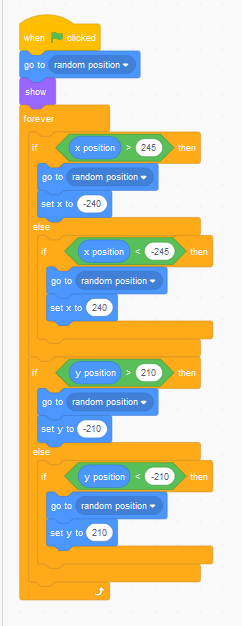
Basically, what's going on here in the picture above is that when the tree goes to the top of the screen when you walk south away from it or when it goes to the bottom when you walk north (same concept for left and right positions), the tree will appear in a new spot on the opposite vertical or horizontal part of the screen.
Now, create 4 small scripts that look like this.

This is what makes the illusion of movement. When you press the movement keys, it appears as if the character is walking to a new location and the game “camera” is following, when in reality the objects around the character is moving. If you'd like, you can replace W with the up arrow key, A with the left arrow key, S with the down arrow key, and D with the right arrow key.
Okay, this last script changes the tree's layer so that when your character goes above it on the 2D plane, they go behind the tree's layer, simulating 3D planes. (The planes in geometry, not the ones that fly!)
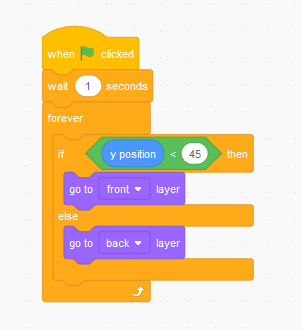
Alright! That sums up the tree's coding. You can use this code for any object in the game, but you may want to consider changing some values depending on the character and object sprite sizes.
Okay, now just duplicate the sprite multiple times until you feel there's enough objects on screen. To make the game the very best it can be, it's recommended to change the costumes and sprite names (unless you really like having nothing but the same tree to look at) so that way the game looks more detailed and diverse.
That's basically the bulk of the game! Whatever you want to add from here is up to you, but I recommend adding enemies (you can build your own RPG-esque fight system using variables, or use the Scratch Wiki's top-down shooter tutorial), music, and sound effects!
Here's a finished version of the engine. https://scratch.mit.edu/projects/320105607/
I hope you enjoyed my mini-tutorial. Good luck on your game-making adventures! I know that I'm personally going to make a game using the code I showed off, and you should too!
First, for this lesson, we're going to make the background a grassy-green. Just use the shape tool to make a huge square for a background.
Now, make a sprite of your character. It can be anyone or anything! Stick it right in the center of the screen.
Done with that? Great. Create another sprite of something that should appear in your game world. In this example, it'll be a tree.
The goal for the game is to have a new tree generate in the world whenever the tree already on-screen leaves your sight. To give the illusion of movement, we're going to have the objects in the game move instead of the player.
This is the script I used. Depending on the sprite size, you may need to change the values a bit.
Basically, what's going on here in the picture above is that when the tree goes to the top of the screen when you walk south away from it or when it goes to the bottom when you walk north (same concept for left and right positions), the tree will appear in a new spot on the opposite vertical or horizontal part of the screen.
Now, create 4 small scripts that look like this.
This is what makes the illusion of movement. When you press the movement keys, it appears as if the character is walking to a new location and the game “camera” is following, when in reality the objects around the character is moving. If you'd like, you can replace W with the up arrow key, A with the left arrow key, S with the down arrow key, and D with the right arrow key.
Okay, this last script changes the tree's layer so that when your character goes above it on the 2D plane, they go behind the tree's layer, simulating 3D planes. (The planes in geometry, not the ones that fly!)
Alright! That sums up the tree's coding. You can use this code for any object in the game, but you may want to consider changing some values depending on the character and object sprite sizes.
Okay, now just duplicate the sprite multiple times until you feel there's enough objects on screen. To make the game the very best it can be, it's recommended to change the costumes and sprite names (unless you really like having nothing but the same tree to look at) so that way the game looks more detailed and diverse.
That's basically the bulk of the game! Whatever you want to add from here is up to you, but I recommend adding enemies (you can build your own RPG-esque fight system using variables, or use the Scratch Wiki's top-down shooter tutorial), music, and sound effects!
Here's a finished version of the engine. https://scratch.mit.edu/projects/320105607/
I hope you enjoyed my mini-tutorial. Good luck on your game-making adventures! I know that I'm personally going to make a game using the code I showed off, and you should too!
Last edited by JplaysStuff (July 8, 2019 05:27:23)
- codeman1044
-
 Scratcher

1000+ posts
TUTORIAL - Creating a procedurally generated top-down game!
This is a well put together tutorial. Sadly, tutorials are not what the Help with Scripts forum is looking for. Rather, people ask for help by creating a topic, and then other users answer their questions.
- Discussion Forums
- » Help with Scripts
-
» TUTORIAL - Creating a procedurally generated top-down game!